If you need to reset or change your client portal password, whether you remember it or have forgotten it, please follow the steps below based on your situation.
1. If you remember your password

If you want to change your password but can still access your account, here’s how:
Log in to the client portal: Enter your current email and password to log in.
Click on your profile icon: At the top-right corner of the page, you’ll see your profile icon. Click it, and a dropdown menu will appear.
Select ‘My Profile’: From the dropdown menu, choose My Profile to access your account settings.
Go to the ‘Change Password’ tab: Within your profile, click on the Change Password tab.
Enter your current password: In the ‘Current password’ field, type in your existing password.
Enter your new password: Now, enter your new password twice—once in the ‘New password’ field and again in the ‘Re-enter new password’ field.
Click ‘Save’: Make sure to click the Save button to apply the changes. Your password will now be updated.
2. If you have forgotten your password
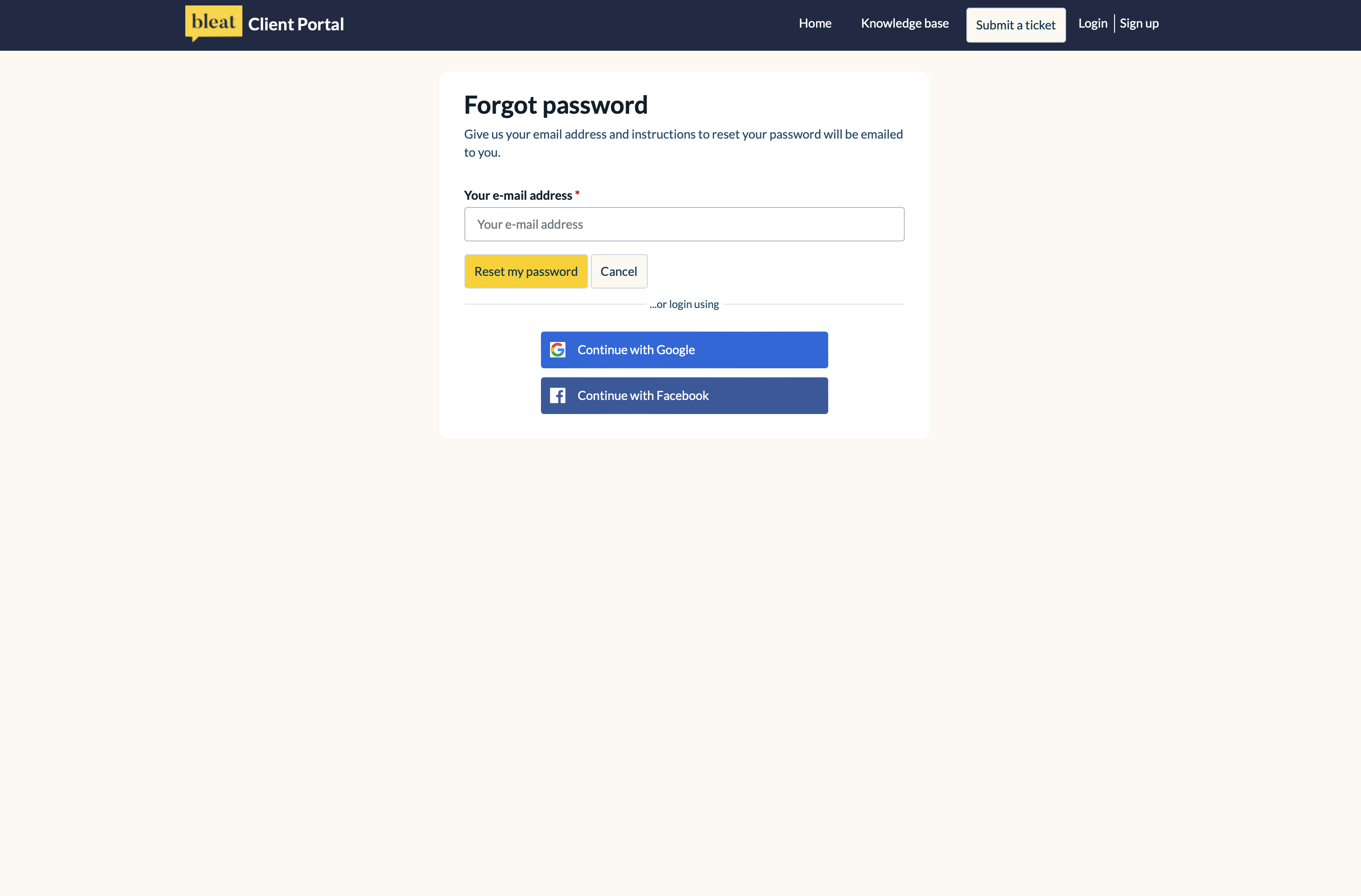
If you can’t remember your password, you can easily reset it:
Go to the client portal homepage: Navigate to the portal and click on the Login button at the top-right corner of the page.
Click ‘Forgot your password?’: Below the Facebook login button, you’ll see the option ‘Forgot your password?’ Click on it.
Enter your registered email: Please enter your email address, and we will send you instructions to reset your password.
Check your email: Look for an email with the subject line ‘Client Portal - User Password Reset Request’. Open the email and click the link provided to reset your password.
Follow the link to reset your password: After clicking the link, you’ll be redirected to a page where you can enter your new password.
By following these steps, you’ll be able to either change or reset your password based on your situation. If you encounter any issues, feel free to contact our support team for assistance!
Was this article helpful?
That’s Great!
Thank you for your feedback
Sorry! We couldn't be helpful
Thank you for your feedback
Feedback sent
We appreciate your effort and will try to fix the article