If you’re experiencing an issue with one of our assessments, submitting a ticket through our client portal is the fastest way to get the help you need. Follow the steps below to submit a new ticket.
Note: If you are facing multiple issues with an assessment, please raise separate tickets for each one. This helps us ensure that communication and actions are relevant to each specific issue.
Step 1: Go to the ticket homepage and log in
First, navigate to the Bleat client portal. You will need to log in using your account credentials. If you don’t have an account yet, follow this guide on how to create one.
Step 2: Click on “Submit a ticket”
Once logged in, look for the 'Submit a ticket' button. It’s located at the top-right corner of the page, making it easy to find. Click on it to start filling out the form for your new ticket.
Step 3: Fill out the ticket form
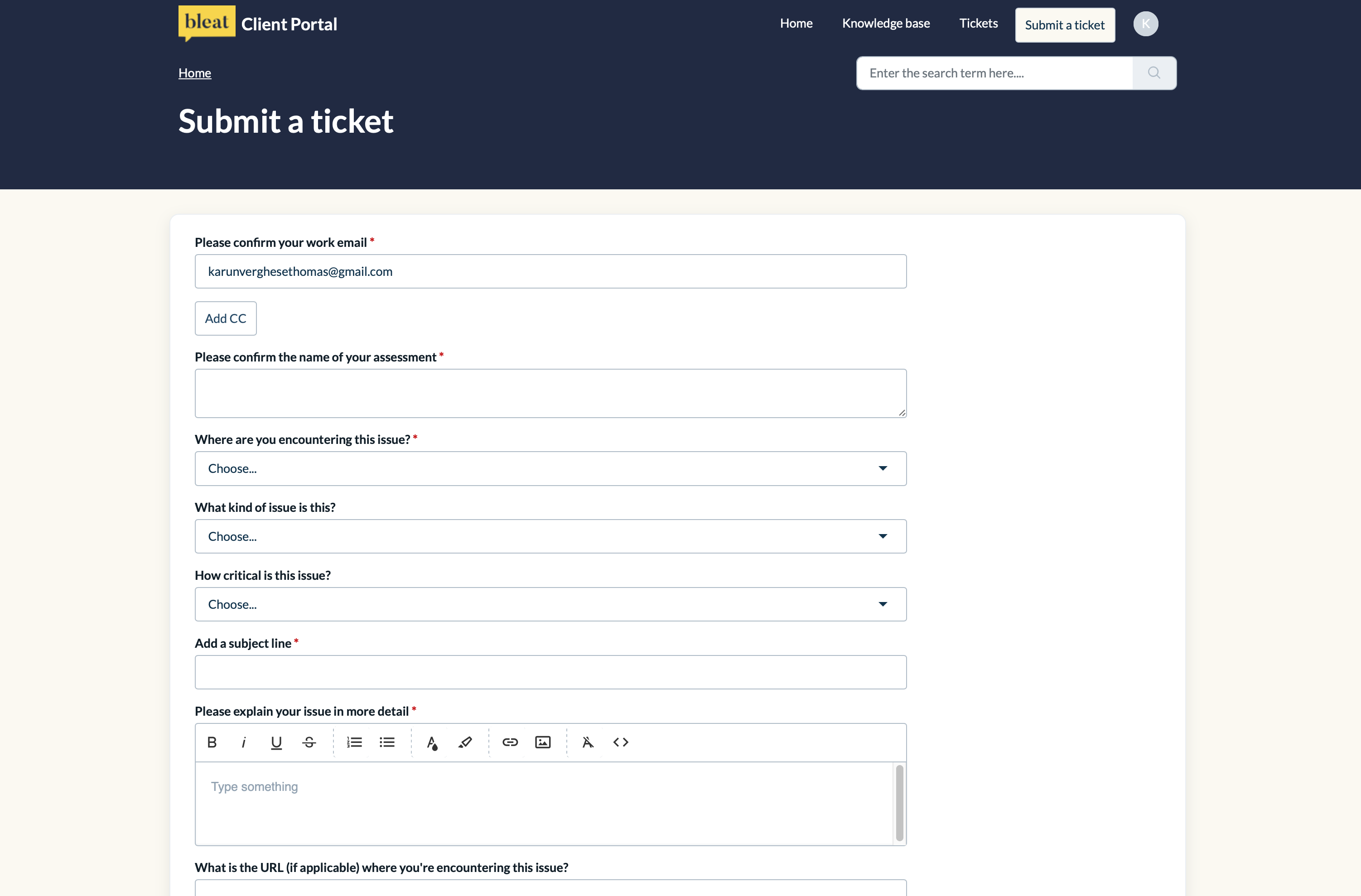
You’ll now see a form with several fields to fill in. Each field helps us gather the necessary information to address your issue effectively.
"Please confirm your work email" (Mandatory field)
Since you’re already logged in, you’ll notice that your email is automatically filled in. No action is needed here.
"Add CC" button (Optional)
If others in your team need to stay informed about the ticket, click the Add CC button. In the CC field, enter the email addresses of those individuals, pressing Enter or Return (for Macs) after each one. They’ll receive relevant updates on this ticket as well.
"Please confirm the name of your assessment" (Mandatory field)
In this field, you need to specify the assessment you are raising the ticket for. If you’re not sure of the name, especially if the assessment is still under development, simply enter NA.
"Where are you encountering this issue?" (Mandatory field)
Next, tell us where in the assessment you’re experiencing the issue. Scroll through the available options and select the most relevant one. If the issue affects multiple areas, choose the primary area and then describe the other affected parts in the explanation section.
"What kind of issue is this?" (Optional)
Choose the option that best describes the issue you’re facing. If none of the options match or you’re unsure, you can select Other and explain in more detail below.
"How critical is this issue?" (Optional)
Indicate how urgent the problem is by selecting the appropriate priority level. Each option includes sample issues, so you can choose the one that best matches the severity of your situation.
"Add a subject line" (Mandatory field)
Enter a clear and brief subject line that summarizes the issue. This helps us quickly understand the nature of the problem.
"Please explain your issue in more detail" (Mandatory field)
In the explanation box, provide as much detail as possible about the issue you’re facing. The more specific you are, the quicker we can resolve the issue and minimize back-and-forth communication.
"What is the URL (if applicable) where you’re encountering this issue?" (Optional)
If the issue occurs on a specific page, please copy the URL for that specific page from your browser and paste it into this field. This will help us replicate the problem on our end.
"Attachment" button (Optional)
If you have any supporting files, such as screenshots or videos, click the Attachment button to upload them. These visuals can be extremely helpful in diagnosing and resolving the issue.
Please note that files larger than 20 MB cannot be attached. If your files exceed this limit, you may need to compress them using a site like this [https://smallpdf.com/compress-pdf] before resubmitting.
Disclaimer: Please note that the terms used on the Ticket form and within the field dropdowns may be updated as you use it. We’re committed to continuously improving this section to provide you with an efficient, seamless, and supportive experience.
Step 4: Submit the ticket
Once you’ve completed all the fields, double-check the information for accuracy, ensure that you have filled all mandatory fields (accompanied by a red asterisk), and click the Submit button.
Step 5: View your submitted ticket
After submission, you’ll be automatically redirected to the Tickets Page, where you can view the details of your newly submitted ticket. From here, you can track the progress of your ticket, communicate with our support team, and add any additional information if needed.
That’s it! Your ticket has been successfully submitted, and our support team will review it shortly. If you need further assistance, don’t hesitate to reach out through the portal. We’re here to help!
Was this article helpful?
That’s Great!
Thank you for your feedback
Sorry! We couldn't be helpful
Thank you for your feedback
Feedback sent
We appreciate your effort and will try to fix the article